Split View in Firefox: Two tabs side by side, right where you need them
 March 23, 2026

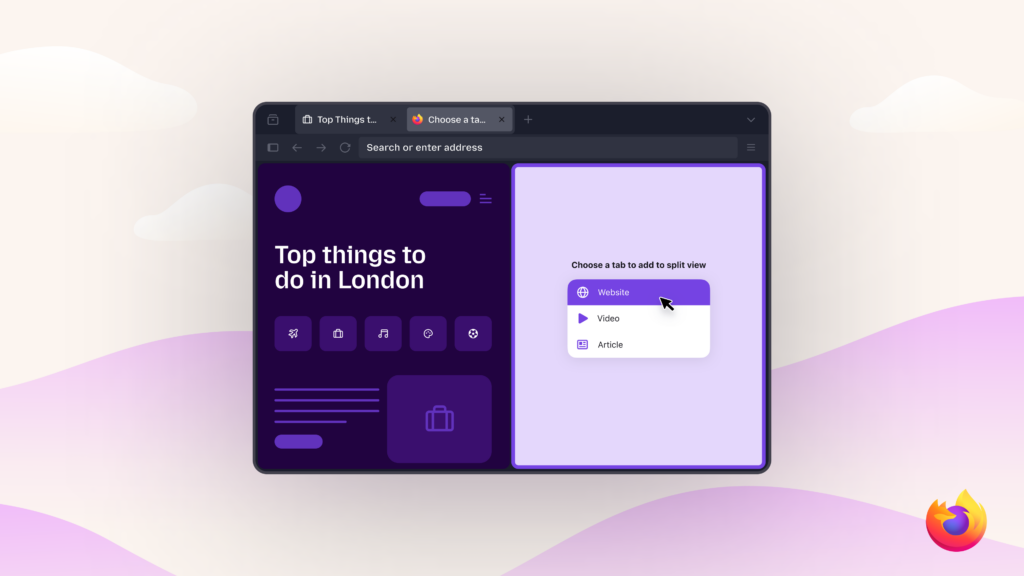
Much of what we do on the web involves looking at more than one thing at a time – booking tickets while checking your calendar, taking notes as you go through a report, or comparing options before making a purchase.
The web is inherently multidimensional. For years, browsing this way meant bouncing back and forth between multiple open tabs, or spinning up multiple windows and using other tools to organize them side-by-side.
The new Split View feature makes these moments easier. It lets you place two tabs next to each other in the same Firefox window so you can see both at once and keep the context you need right in front of you.
Split View is available to all Firefox users starting with Firefox 149, rolling out on March 24. If you’d like to give it a go:
- Make sure you’ve got the latest version of Firefox.
- Right-click a tab and choose Add Split View. You can also select two tabs, right-click, and choose Open in Split View.
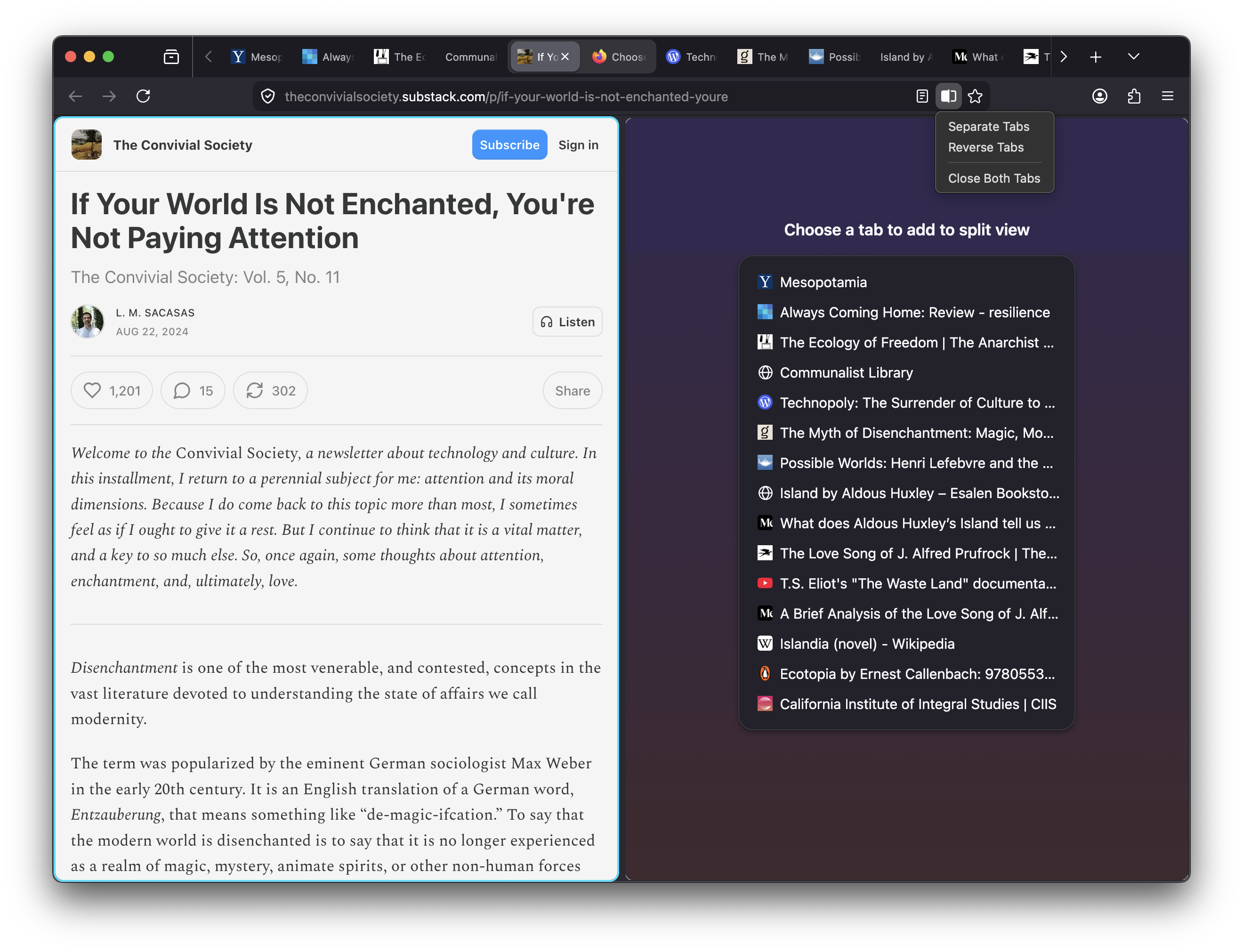
How the Firefox team uses Split View
The team behind Split View has been using it actively over the past few months, and a few workflows quickly stood out. Here are some of the ways people on our team have been using it:
Planning and comparing
Sometimes, you just need two things visible at once.
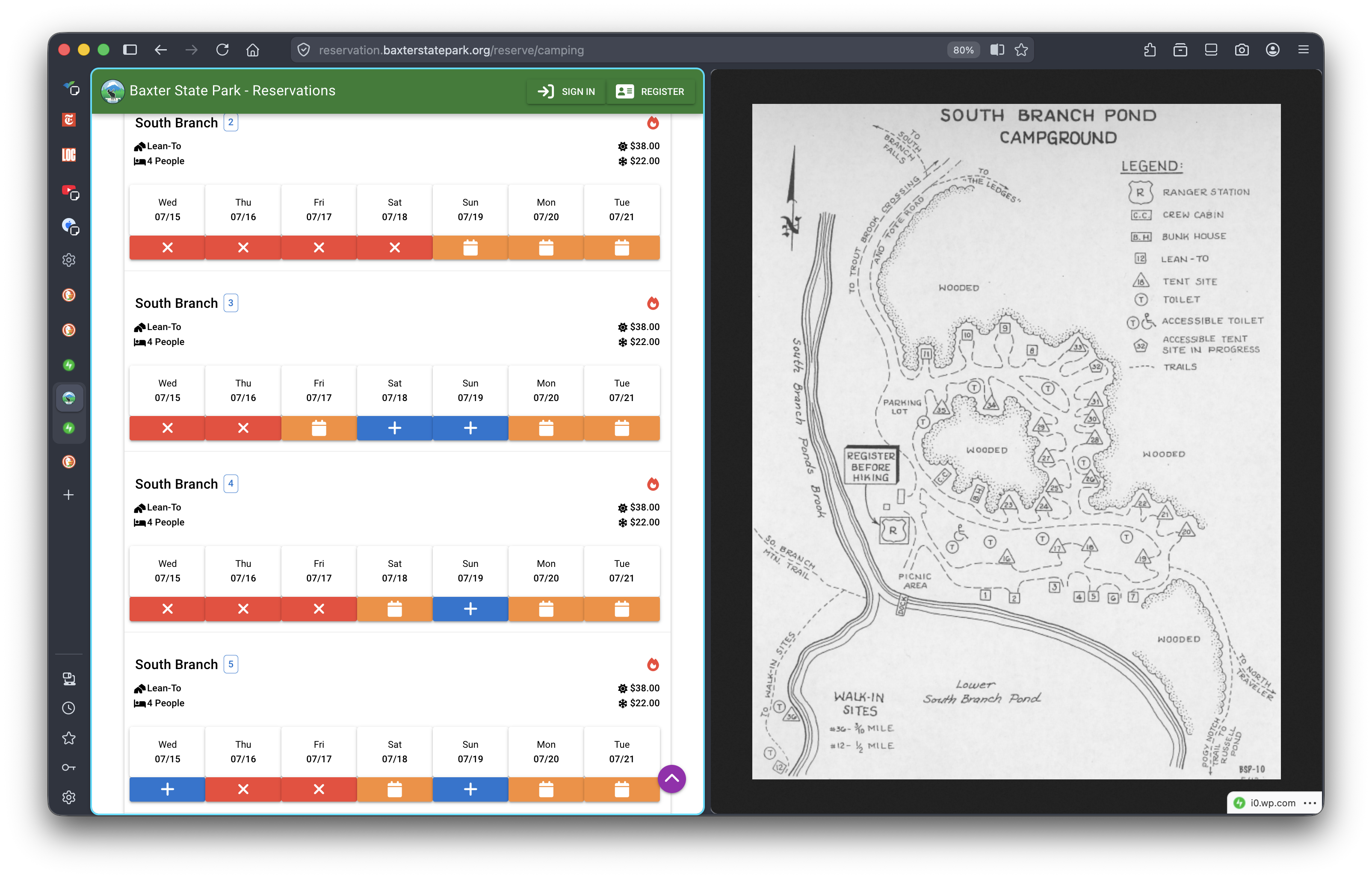
Gabriel: I’ve been using Split View to plan camping trips. I open a map on one side and a campsite booking page on the other. This makes it easy to explore locations and check availability without constantly switching tabs.
Everyday tasks
Split View is also helpful for small administrative tasks, the kind that involve copying information from one place to another.
Jonathan: I used Split View while filing my taxes. All my documents – W-2s and other forms – were online, so I kept them open on one side while filling things out on the FreeTaxUSA site on the other. Having both visible made the process much easier.
Note-taking
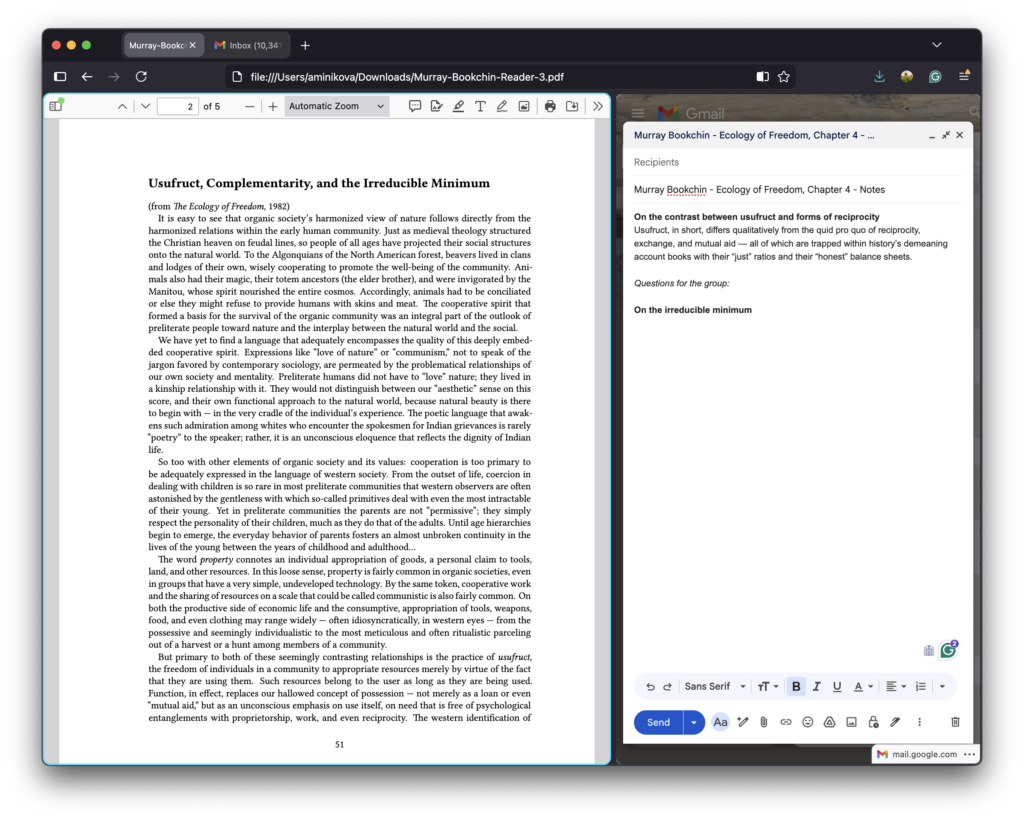
Ania: I often use Split View when reading and writing at the same time. I’ll keep a PDF or article open on one side and take notes on the other as I go. Recently, I’ve been using this setup while preparing notes for my reading group. It helps me stay focused and quickly organize what I want to share.
What’s next for Split View
We built Split View to support the way people naturally move through information on the web – comparing, referencing and writing along the way. This first version focuses on making the most common side-by-side workflows easy.
If you try it, we’d love your feedback on how it fits into your day-to-day browsing and what would make it even more useful.

Take control of your internet
Download FirefoxThis post is also available in: Deutsch (German) Français (French)