3 Ways to Avoid Typing on Firefox for Android

Unless you’re Melissa Thompson (who currently holds the Guinness World Record for fastest touchscreen texter), you probably do what you can to avoid typing on your mobile device. If you feel like you’re “all thumbs” when it comes to mobile typing, Firefox has two built-in features that help you save time and hassle.
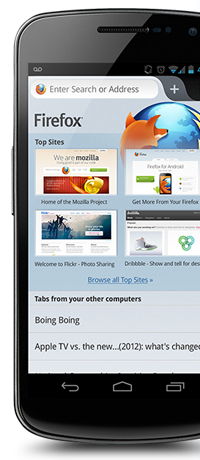
Firefox for AndroidFirst, there’s the Firefox for Android Awesome Screen. Just using Firefox for Android lets you type less because the Awesome Screen learns about you as you go. It gets you where you want to go quickly by giving you a list of your most visited sites, along with the ability to browse through your bookmarks and history. Just tap on the site you want to visit. No typing involved!

Next up is the Firefox Sync feature. This built-in tool allows you to take all of your bookmarks, history, etc. from the Firefox browser on your home computer to the Firefox browser on your Android device. This way, your favorite sites from your home computer are easy to access from your mobile phone, without having to retype any URLs.

You could also enlist the help of one of the mobile add-ons for Android. Add-ons are little bits of code that add functionality to your Firefox browser. For example, URL Fixer is a mobile add-on that corrects typos in URLs that you enter in the address bar. This way, you don’t get an error and have to retype it all over again.

Yay for saving your thumbs! And Yay for Firefox for Android! Get it in the Google Play store now.


Firefox Tip – Use Private Browsing

The makers of Firefox spend a lot of time thinking about secure browsing. Facebook fan Edgar S. points out one of his favorite secure browsing tips.

“I use Private Browsing when handling sensitive information from work on my home computer. On the menu bar, click the Tools menu and select ‘Start Private Browsing.'”

Thanks Edgar. That also comes in handy when you’re shopping online for family gifts and you don’t want them snooping around in your history to figure out what they’re getting! Read more on Private Browsing.

If you have a tip you’d like to share with other Firefox users, please post it on our Facebook page with #FirefoxTips and tag us, or post on Twitter with #FirefoxTips. You can also view more tips in our archive.

If you found this tip useful, be sure to share it with the Facebook and Twitter buttons below, and help tell the world about Firefox.

Save Space, Time and Money with Firefox

Who doesn’t like to save — on anything? There are lots of ways Firefox can help you save space, save time and save money. Here are just a few.

Firefox helps you save space:

1. Want to get some of your computer screen back? Go to View > Toolbar > Customize and at the bottom of that window, click the box that says “Use Small Icons.” (There’s also a restore button there if you want the old icons back.)

2. Do you have an itty-bitty screen? Or do you want to watch that video using all the screen space possible? To view Firefox or a website full screen (hiding all of the toolbars), click the Firefox button and then “View Full Screen” (Windows XP and Mac: View > Full Screen). To get it back, move the pointer to the top of the screen, right-click on an empty section of the tab strip and click “Exit Full Screen Mode” (or the full-screen symbol on a Mac).

Firefox helps you save time:

1. You can shave seconds off your browsing time by using keyboard shortcuts. These differ depending on your operating system, but you can find a full list right here.

2. Keep your favorite sites only a click away by “pinning” them to your browser as an App Tab. Go to your most-used site, right-click on the tab for that site and from the menu, select “Pin as App Tab.” You’ll see that site as a small tab on the left side of your browser — ready for you to click quickly and whenever you need it!

Firefox helps you save money:

1. There are thousands of Firefox Add-ons available — little pieces of software to install that allow you to customize your browser. Quite a few of these add-ons are dedicated to helping you find the best price for the best items when shopping online. Check out the shopping collection to save yourself a few bucks.

Firefox Tip – Do Not Track on Android

Many websites track their visitors’ behavior and then sell or provide that information to other companies (like advertisers). Firefox’s Do-not-track feature lets you tell websites you don’t want your browsing behavior tracked.

Facebook fan Kang M. recently told us that it’s one of his favorite things about Firefox, and offered an extra tip.

“I like the Do Not Track feature. You can even activate it on your Android phone.”

You absolutely can, Kang! Thanks for pointing it out.

Here’s how to turn it on using your Android phone: Tap the main Menu, then tap More and then Settings. On the Firefox Settings screen,  scroll down to the Privacy & Security section and tap the button next to Tell sites not to track me to set enable the feature. Read more about Do Not Track on your Android device.

If you have a tip you’d like to share with other Firefox users, please post it on our Facebook page with #FirefoxTips and tag us, or post on Twitter with #FirefoxTips. You can also view more tips in our archive.

If you found this tip useful, be sure to share it with the Facebook and Twitter buttons below, and help tell the world about Firefox.

4 Sunny Ways to Get the Weather with Firefox

If you don’t like the weather, all you have to do is wait. It will change. When it does, you’ll be prepared, because you’ve got Firefox!

Firefox puts you in control and lets you customize it to meet your needs — and everyone needs to know the weather, right? Here are four ways you can have the weather forecast right in your browser using bookmarks and Firefox Add-ons (Add-ons are small pieces of software that add new features or functionality to your Firefox).

1. Rain Alarm Extension: This Add-on lets you receive a notification alert when it’s going to rain or snow in your current location. One click and you can watch what’s coming with an up-to-date radar animation on top of Google Maps.

2. ForecastFox Weather: Get international weather forecasts fromAccuWeather.com and display them in any toolbar or statusbar. This Add-on is customizable and very easy to use.

3. AniWeather: AniWeather animates weather information for locations around the world — 77,000 of them! It’s totally customizable (and did we mention animated?).

4. Have a favorite weather site that isn’t currently an Add-on? Why not bookmark it for easy access? You can minimize the number of clicks to get to that bookmark by using
the Bookmarks Toolbar. It sits under your URL bar and gives you instant access to your favorite sites. From the menu bar, select View > Toolbars > Bookmarks Toolbar. Now, head to Weather.com, Weather Underground or whatever weather site you like. Then simply drag it to the toolbar, where it will appear with a small icon. Click it to get your forecast at any time!

Firefox Tip – Middle Mouse Button Shortcut

Not only does Firefox make use of keyboard shortcuts, Facebook fan Feng W. reminds us that there are mouse shortcuts as well!

“I use the middle button on the mouse to press on the ‘back/forward’ button in the Awesome Bar, which will pop up a new tab with the previous pages.”

Thanks Feng! That’s a very impressive and useful short cut.

If you have a tip you’d like to share with other Firefox users, please post it on our Facebook page with #FirefoxTips and tag us, or post on Twitter with #FirefoxTips. You can also view more tips in our archive.

If you found this tip useful, be sure to share it with the Facebook and Twitter buttons below, and help tell the world about Firefox.