Guest Post: “I want to contribute, how do I start?”

Preface

This is guest post from one of webdev’s awesomesauce community contributors: Nigel Babu. nigelb contributes to a bunch of Mozilla’s web apps including Firefox Input and Socorro. He writes about Mozilla and open source on his blog and hangs out on #webdev on IRC — where we often talk about motorcycles.


At Mozcamp Asia, Tim Watts and I talked about contributing to Mozilla Webdev. When I met Tim, he asked me how I got started and what were some of the challenges I faced. This blog post is a summary of those challenges and a few solutions to help new contributors to Mozilla Webdev. This is also a condensed summary of our session, so if you missed it don’t feel too bad 🙂

Finding a Project

Finding a project to work on is the first baby step. Everything from here down is easier if you know what you want to contribute to; of course, it’s perfectly normal to be clueless as well. Everyone is mildly lost at this step at first. It helps if you have a clear understanding about what kind of code you want to write. Webdev has lots of different projects requiring different skill sets: Python/Django, JavaScript, HTML/CSS, and PHP are all in use at Mozilla. Almost all new projects require Python and Django knowledge, but we still have a few projects on PHP that you could help with — like mozilla.org and Socorro. Talk to us in #webdev with what kind of code you want to write, and we can help you find a nice project that needs help. You can start with a smaller project with fewer moving parts if you feel like it’s too much to take in. But one tip I have is: the bigger the project, the greater the opportunities.

“I Don’t Know What to Do”

It’s not easy to find something to do. I can attest to that. I know I had some trouble as well. Once you have found a project to help with, it becomes easier finding something to do. You could look at bugs with [good first bug] in the whiteboard — they’re generally good to start with. Another idea is to follow all the bugs for that project (bugmail can be noisy: set a filter or get ready for inbox explosion), so you can pick new bugs as they come in. Being in the project’s IRC channel also helps immensely. When fellow webdevs and Web QA learn that you are a new contributor and want something to do, they’ll be happy to point you to easy bugs or subscribe you to easy ones they see.

Finding a Mentor

While finding a mentor is not strictly necessary; however, it helps when you can ping someone to help you. When you find a project, some of the developers on that project are good candidates to mentor you. Feel free to ping the maintainers/developers for help when you are stuck. There are also the Stewards (https://wiki.mozilla.org/Stewards/Webdev) who can help you find a match: don’t feel shy about asking them to help you out.

Setting up Your Environment

Earlier, this was a challenging experience, sometimes it even seemed downright impossible. With the recent work we’ve done with vagrant, everything is much easier! Almost all new projects have a vagrant-based setup for the development environment and it should be much faster to get you off the ground. When in doubt, ask the project maintainers if there’s a vagrant setup for that project.

These were the 4 things that I faced and helped me start off. If you are interested in being a contributor and something ticked you off, talk to me — in the comments or on IRC. Feel free to reach us on #webdev on irc.mozilla.org with any questions or if you want to get started in contributing to Mozilla Webdev.

Git: Using topic branches and interactive rebasing effectively

When I first joined the webdev group at Mozilla I was a Mercurial refugee who had never used git or github. I was always daunted by git and suddenly I had to learn it really fast!  Fast forward to today and I can’t imagine working on a highly collaborative project without git or github.  Here is the workflow we use for the addons.mozilla.org project.  I highly recommend it and I’ll summarize exactly why at the end.  It’s pretty similar to how I’ve heard a lot of teams work but has some subtle differences.

Using topic branches

The first thing I do is sync up with master and create a topic branch for my new feature or bug fix:

git checkout master
git pull
git checkout -b add-email-to-install

Now I have a branch I can commit code into without affecting master.  Git checkout makes it super easy to switch between branches in the same repository clone if I’m multi-tasking or applying hot fixes.  In addition to git checkout, you can also use git stash to switch tasks.

Commit messages

It’s really important to write a well-formed git commit message. We always include a ticket number into bugzilla, our tracker, so that anyone can get the full back story about a change.

Ask for a code review

Once I’ve added my feature with passing tests I commit my changes, push to my personal fork of the repository, and ask someone on my team to review the code.  On addons.mozilla.org we just ping each other in IRC with a link to the commit or a link to the compare view.  If no one is around we submit a pull request.

Github has a sweet interface where you can write comments directly on the diff, like this:
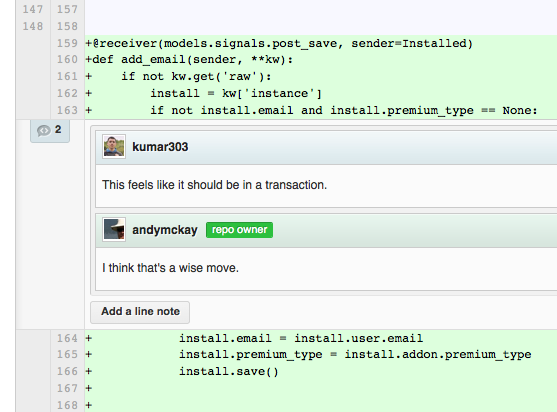
Whoops, another change is needed based on feedback from the code review.

Fixing up the topic branch

The nice thing about working in a topic branch is it’s isolated from master and no one else is tracking that branch so I can use git rebase to create the best commit before merging into master.  Let’s say I have some commits on my branch like this:

$ git log --pretty=oneline -2
825d662cc69774e412119e1eb7ae0900c29d89a0 Fix: put code in a transaction
31378788f321b46f5e27f9fb51bdd19365636871 Adds email to the install record (bug #NNNNNN)

What I really want is to combine those two commits into one.  I can do that with git rebase —interactive. I type:

git rebase -i HEAD~2

Then I’ll get a prompt for rebasing my last two changes:

pick 3137878 Adds email to the install record (bug #NNNNNN)
pick 825d662 Fix: put code in a transaction

# Rebase 194b59d..825d662 onto 194b59d
#
# Commands:
#  p, pick = use commit
#  r, reword = use commit, but edit the commit message
#  e, edit = use commit, but stop for amending
#  s, squash = use commit, but meld into previous commit
#  f, fixup = like "squash", but discard this commit's log message
#  x, exec = run command (the rest of the line) using shell
#
# If you remove a line here THAT COMMIT WILL BE LOST.
# However, if you remove everything, the rebase will be aborted.
#

If I put the word fixup next to my second commit, it folds it into the first:

pick 3137878 Adds email to the install record (bug #NNNNNN)
fixup 825d662 Fix: put code in a transaction

Now I have one commit (it’s actually a new commit) that contains all of my changes:

$ git log --pretty=oneline -1
c7846808c8296dd49d49612101aaed7cdfd6d220 Adds email to the install record (bug #NNNNNN)

Pretty slick, right?

Typically you’d want to wait until everyone has had a chance to review your code before you start rebasing.  However, git pull requests do handle rebased changes.  You can push -f to your own fork and the pull request will remove the old commits from the conversation and add the new ones at the bottom.

Merge into master

When my changes are ready, I can merge my branch back into master.  However, I don’t need to make a merge commit if there’s only one commit to merge in.  That would clutter up the logs.  I can do this with a fast-forward merge:

git checkout master
git merge --ff add-email-to-install

Now I can close the ticket in our tracker with a direct link to my changes.

Sometimes I might actually make multiple commits on a single topic branch.  In this case I would want to retain the automatic merge commit.  That is, I wouldn’t do a fast forward merge in the case of multiple commits:

git merge --no-ff add-email-to-install

I can then close the ticket with a link to the single merge commit that shows all changes introduced by the branch.

Fixups, for ninjas

If you follow this pattern you’ll become accustomed to frequently fixing up your topic branch. I created a ninja alias for it in ~/.gitconfig like this:

[alias]
    ...
    fix = "!f() { git commit -a -m \"fixup! $(git log -1 --pretty=format:%s)\" && git rebase -i --autosquash HEAD~4; }; f"

When on a topic branch with uncommitted changes I can then type:

git fix

That will automatically commit my change and pre-configure the rebase prompt to fold it into the last commit.

UPDATE: As pointed out in the comments, a quicker and simpler way to fix up and rebase just the last commit (i.e. not multiple commits) is:

[alias]
    ...
    fix = "commit -a --amend -C HEAD"

Synchronization with master, for ninjas

If you’re on a project that has a lot of commit activity you’ll probably want to rebase your feature branch on top of master often.  I added a ninja alias to ~/.gitconfig for that too:

[alias]
    ...
    sync = "!f() { echo Syncing $1 with master && git checkout master && git pull && git checkout $1 && git rebase master; }; f"

When I’m on my feature branch and I want to synchronize it with all the latest changes on master, I type:

git sync add-email-to-install

The main benefit to syncing a branch before merging into master is that a fast-forward merge won’t create a new commit.  This helps you safely delete work branches later on since it won’t look like you have un-merged changes.  It’s also useful to do a last minute spot check before merging into master: do the tests still pass? do I need to adjust my SQL migration script? etc.

UPDATE: Fernando Takai posted a simpler version of this in the comments using git checkout - to go back to the last branch you were on. You can then simply type git sync from the branch. Thanks!

Why resort to all these ninja like git strategies?

  • Using git blame on a single line of code is more likely to give your team a full picture of all the reasons why that line of code was introduced. For this same reason, we at addons.mozilla.org always link to our bug tracker in each commit.
  • Your commit log will have a high signal to noise ratio making it easier to skim when looking at a compare view between releases.
  • Ninjas don’t make mistakes.  Ever.

Random Notes

  • Kernel hackers frown on using rebase but that’s probably because many people are committing to the same files and it’s important to see what the original starting tree was when work on a new feature started.  For web development, if two members on your team are working on the same line in the same file then your team isn’t communicating well enough.  I rarely see conflicts on my team that aren’t resolved automatically by a three way merge.
  • After committing to master you might discover a mistake.  That’s fine, make a new commit.  Be sure to never fixup a commit on master because everyone tracking master will be sad!
  • Where do your fixed up commits go?  They are still there but are detached from any branch and thus get deleted eventually by git’s garbage collector.

Scrubbing your Django database

This is the second in a series of posts, focusing on issues around open sourcing your Django site and data privacy in Django.

You’ll end up with production data in your Django database and that will likely contain different kinds of data such as: configuration data, required basic data (categories for example), collected data and personal user data. There’s a couple of reasons for taking that production data and copying it off your production servers:

  • for developers and contributors you want a sample copy of the app with some key data in.
  • for testing or staging servers, you might want to copy down the database from the production server so you can test certain scenarios or load.

Extracting parts of your database

For the first case, it’s nice to prepare a minimal copy of the database that contains key data. For example, for those wanting to develop or contribute to addons.mozilla.org we have Landfill by Wil Clouser.

Django comes with a nice facility for loading data, fixture dumping and loading. This can be used to pull data out of your database and then reload it. However the built in Django dumpdata dumps all the records for your model (depending upon your default object manager). That might not be what you want for this scenario. So a useful utility for dumping just the records you want is provided Django fixture magic written by Dave Dash.

A standard dumpdata looks like this:

manage.py dumpdata users.UserProfile

And will dump every UserProfile. By contrast:

manage.py dump_object users.UserProfile 1

Will just dump the UserProfile with primary key of 1. Django fixture magic also has a few other useful things such as merging and reordering fixtures.

This allows you to trim a set of fixtures from your live database down quickly. Then developers or contributors can load the key parts of the database that they need from those fixtures.

Anonymising the database

Sending the production database downstream to internal developers or internal test sites is a pretty common use case. This process does not require a complete clean of the database, but it does require some cleaning of database. If you stored credit card data, for example, you’d never want to copy that off your production database.

At Mozilla we use an anonymising script, written by Dave Dash again. There are few options: to truncate, nullify, randomize or selectively delete. The format is a simple YAML file, for example:

   tables:
        users:
            random_email: email
            nullify:
                - firstname

This is a snippet from the config script for addons.mozilla.org.

When the IT copies the databases down from production, this script is run against the database. Ensuring that when us developers access the backups to investigate certain issues, we’ll be getting the bits we want and not the bits that might expose user data.

In the next blog post we’ll look at logs and tracebacks.

Using localtunnel to do web development on actual mobile devices

Surely you’re convinced too now that developing for the mobile web is important. It certainly is for us here at Mozilla. Mobile web development isn’t just about making a ultra-slim stripped down version with no images or Javascript widgets. It’s also about taking regular full powered web applications and making stepwise adjustments to make sure they work responsively on all mobile devices which means everything from tablets to regular cell phones over 3G.

There are numerous good guides such as this for Designing for Mobile Devices and there are great add-ons for Firefox such as the User Agent Switcher. And don’t miss Jason’s wonderful blogs from the archive part 1, part 2, part 3 and part 4. But ultimately, nothing beats actually testing it on a real physical device.

That’s where localtunnel (by Jeff Lindsay) comes in. What it does is that it binds a local port (e.g. port 8000) on your desktop to a real domain name (e.g. xyz123.localtunnel.com) all over SSH. So, you start your local Django server locally and then start a local tunnel and after waiting 1-2 seconds you get a real domain name to type into your iPhone, Android, Nokia smartphone, whatever and you can test away as much as you like.

Granted, you can use it not just for mobile device development but for anything such as telling a colleague over IRC to visit your site running locally on your laptop. And also, if you are in an office where you connect to the same local WiFi with your laptop as you do with your mobile device then you can just use a local IP address. But that’s often not the case especially when working with people in different locations.

An added, yet strange, benefit with using localtunnel to test your mobile device is that it is naturally slow. That’s because the traffic has to go via SSH over the network and your local network won’t be as fast as a real data center. However, in real life, the network connection will be slow when using a mobile device so it’s important to see how your mobile web app behaves with a limited bandwidth.

From 80 Seconds to 6: Optimizing Our Asset Compression

Before pushing our CSS and JavaScript assets to our CDN, we run them through jingo-minify to concat and minify the files, as well as cache bust them and any resources (such as images) contained inside them.  Turns out, this was by far the slowest part of our push process — it took  between 80 and 160 seconds for addons.mozilla.org (AMO) assets.  It wasn’t a huge priority, since most of the time this happens in the background and nobody really notices.  However, I wanted to see how fast I could get it. Continue reading …

Open sourcing your Django site

This is the first in series of posts, focusing on issues around open sourcing your Django site and data privacy in Django.

A lot of people focus on open sourcing their Django libraries, but at Mozilla we open source the entire site. Releasing your entire source code can lead to a few problems, firstly let’s look at your Django settings file.

Separating your settings

All Django sites come with a settings.py file. This file contains some key settings that you should not be releasing to the general public, such as database configuration and the secret key. The simple way to do this is have another file that contains the secret settings and then import it from settings.py. For example include this at the bottom of your settings.py:

All your sensitive settings can now kept in that local file on your server and should not be published as part of your site code. This file will override the base settings file.

There are plenty of other examples on different ways to do this. You can do it in manage.py, or turn your settings.py into a folder that Python can import. Make sure that you ignore your settings_local.py file in your source control.

If you add in new settings, make sure you add them into the main settings.py file. Even if they are just empty strings, lists or whatever, it will mean that when you call settings.SOME_KEY in your code, you won’t have to cope with the setting not being present. There’s nothing more tedious than writing lots of getattr code to cope with that.

Viewing settings on the server

One downside of doing this is that you might not be sure what your settings are on the server. At Mozilla only the system administrators who manage and deploy our servers can see the contents of that file. But it’s still helpful to check the settings on the server. For that we wrote a settings page that lists them out.

Django helps by providing a method that lists the settings, but obscures those really sensitive values:

On addons.mozilla.org we require an account to have certain privileges before showing the page. But even if that did get broken into, you wouldn’t know our SECRET_KEY or anything very useful. Here’s how that page looks:

Now that you’ve got your settings files ready, you can confidently open source your Django project safe that you won’t be leaking any key data.

In the next blog post we’ll look at scrubbing personal data from your database.

What is Shipyard?

At our recent Mozilla All Hands, I shared some slides about Shipyard, a JavaScript MVC framework that is making it’s way into Add-on Builder. It’s not finished, but since I shared it there, it felt appropriate to share what there currently is here.

Summary

Shipyard is an application framework that covers all the common things any JavaScript application would need to deal with: interacting with a server, storing data, rendering said data in the browser, and responding to user actions. An application built on Shipyard should only have to write the parts to pull all those things together.

If you’re application is going to have 1000 lines of JavaScript, would you rather write all those yourself, or have 900 of them be in a framework that is tested and used by others?

When starting a web application, you would reach for Django, or CakePHP, or Rails; never would you decide to use just the language itself. Why shouldn’t you do the same when the target language is JavaScript?

Framework-wide Goals

  1. Be able to declare dependencies inside the code, and not be bothered with managing them during development or deployment.
  2. Be easily testable, using a node test runner.
  3. Not reliant on any other language. Build scripts will use JavaScript. The End.

More

It’s heavily influenced by MooTools, since they have an excellent modular design, but turned into CommonJS modules while Moo 2.0 figures itself out. There’s slides, and the repository, again. You could even discuss what true Controllers should do.

Installing Node.js On Windows

Node.js is an evented system, that allows JavaScript developers to write fast, non-blocking, applications that run independent of the client and have access to aspects of the underlying operating system such as the file system.

Installing Node.js on systems such as Linux or Mac OSX is straight forward and simple but, installing it under Windows is a little more tricky, that is until the port of Node.js to Windows is complete, allowing Node.js to run natively on Windows.

Your first step is to download and install Cygwin. For Nodejs you can grab the zip archive (remember, even numbers = stable releases, uneven numbers != stable) or you can clone the repository directly from Github. I am using the clone route for this article.

Getting Cygwin Ready

Whether you are going to work from a clone using Git or not, we need to step back for a little bit and add a couple of additions to Cygwin before we can continue. To install extra features run the setup.exe file you downloaded when initially installing Cygwin. Once you get to the select packages window, type git into the search input.

From the result, open up the develop tree and select git and git-completion(optional):

Adding Git support

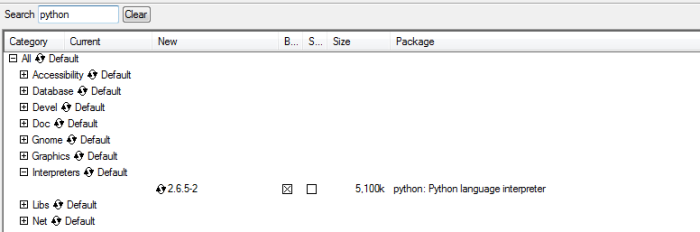
Next type in python, open up the interpreters tree and select the Python interpreter:

Adding Python Support

Next we need to add a C++ compiler, type g++ into the search input, open up the develop tree and select gcc-g++

Adding the C++ Compiler

We also need to add the openssl-develop package. Type in openssl, expand the Develop tree and select openssl-develop

Adding OpenSSL Support

Lastly, we need the all important make utility. Type make into search, expand the Develop tree and select make from the list:

Adding the make utility

Accept the required packages and click next again. Once the installation is complete, we can continue.

Getting The Nodejs Source

Open up Cygwin again and navigate to the directory you want to clone Nodejs to:

cd /cygdrive/c/github/

Now run the following command to clone the repo:

git clone https://github.com/joyent/node.git nodejs

After this is complete, move into the nodejs directory. We now need to checkout the version we want to build so, instead of just a plain checkout, we will specify the version we want:

git checkout v0.4.12

NOTE: If you have AVG AntiVirus installed it is going to mark the above process as a possible virus and prevent the checkout from happening successfully. Head into the AVG preferences and under ‘Resident Shield’ add an exception that points to the path where you Nodejs source will be located.

Building Node

Once the checkout is complete, run:

./configure

NOTE: If when running the above command you get an error stating “unable to remap…….”, you will need to rebase. To do this, close your current Cygwin window and open the Windows command prompt.

From here navigate to the bin directory inside Cygwin, for example

c:/cygwin/bin

From here run ash.exe. At the resulting bash, type /bin/rebaseall

Now, open up your Cygwin shell again and rerun configure. Once completed, run make and lastly run make install. Once this is DONE, you have a Nodejs environment on Windows.

Testing Our Installation

To test that our environment does indeed work, let’s use the staple Hello World example from the Nodejs site. In a folder anywhere on your computer, create a new file and call it hello.js, inside this, add the following:

var http = require('http');
  http.createServer(function (req, res) {
      res.writeHead(200, {'Content-Type': 'text/plain'});
      res.end('Hello World\n');
  }).listen(1337, "127.0.0.1");

console.log('Server running at http://127.0.0.1:1337/');

Now, navigate to this file location using Cygwin and run the following command:

node hello.js

If you get a response such as “Server running at http://127.0.0.1:1337/”, Nodejs is working. For more proof, open up that URL and stare in amazement. And that is it, a working Nodejs installation on your Windows machine, enjoy!

I will be following this article up with a short one on setting up NPM, the Nodejs package manager, on Windows. On a side note, there is currently a native node.exe installer for Windows but, this is in the unstable 0.5.8 branch so, although I have been told it should be fine for testing and local development, if you wanna live on the edge, give it a go.

Ada Lovelace Day: Sheila Howell

Happy Ada Lovelace Day!  This day is  celebrated by writing about a woman in technology who inspired you.

For Ada Lovelace Day this year, I want to honor Sheila Howell, a computer science academic at my alma mater, RMIT University. I first met Sheila in the early 90s in CS280 – Software Engineering.  In that course I learned how to design and estimate systems.  She taught systems thinking, a skill I have used over and over again and use to this day.  I remember an exercise where we had to interview “users” (academics with scripts) about the current system, and design something better.  That has stayed with me: the best way to learn something is to do it.  The other key thing I learned is that there’s more to a solid system than the code.

Sheila went on to become the Head of School of Computer Science, and I went on to teach CS280, funnily enough, among other things.  She was an excellent Head of School: liked by everyone but supremely good at getting things done.

She tried to retire but didn’t manage it, coming back to run the African Virtual University project at RMIT.  This was a fantastic program that aimed to help African Universities set up and teach Computer Science programs.

I believe Sheila is still teaching at RMIT to this day.

I’d like to say thank you to Sheila: you inspired and influenced my career more than you’ll ever know.

i18njs : Internationalize Your JavaScript With A Little Help From JSON And The Server

Couple of weeks ago I spoke to a friend over at Mozilla about internationalization in JavaScript. This is an area that’s lacking in JavaScript and during this discussion I got the idea of implementing a solution based on the methods used be server side languages. Today I am happy to announce the first release of i18njs to fill this gap.

i18njs is made up of a couple of parts, the main script, json files and a small dependency on the server side. Why this server side dependency? Well basically, because their is no reliable way to get hold of the user’s language and/or locale using client side JavaScript. There are a couple of language properties exposed on the navigator Object such as .language, .userLanguage etc. but none of these are reliable and, for the most part, are not effected by changes made by the user with regards language preferences.

The one place that has this information and is most reliable is the ‘Accept-Language’ HTTP header. Unfortunately we cannot get at this using JavaScript on the client but, we can make a quick call to the server for this information, store it on the client and then we are good to go. I am not going to discuss the implementation of this, there are currently a demos using Java as well as Rails in the repo on Github you can check-out.

Let’s start by looking at the usage of i18njs:

Pretty straight forward. You create the options object and then populate two properties. The first is the URL that will return the sub-string from the Accept-Language header and the second indicates whether you wish to support locales or not. Let’s look at the second property a little more. When a user sets their language in their browser they have, for some languages, more than one option. For example for French, you can select French(France), French(Canada) etc. For these language selections the result returned from the server will include the language as well as the locale as follows: fr-FR or fr-CA

If you need to differentiate between locales in your application, then you want to set the supportLocale property to true. So why does this property exist and why is it important? The best way to explain is to discuss how i18njs works after the call to the server has completed.

In server side languages internationalization is usually handled by loading some form of properties file that contains the strings, formats etc. localized for the current language and/or locale. These normally take the form of a text based properties file or in some cases a ‘standardized’ XML format, i18njs works in the same manner.

After the language has been determined, the appropriate localization file get’s loaded. These files are in the JSON format and the names of the files are named according to the language and, optionally, the locale so, if supportLocale is set to true and the current user language is set to French/Canadia it will try to load a file named fr-CA.json. If the supportLocale is false, it will substring the retunt value and use the first 2 characters only, which means it will now attempt to load a file simply names fr.json.

Your localization files should all reside in a folder called locale, the content of the file is up to you, as long as it is in a valid JSON format or parse error will result. Let’s look at a small sample. Below is thee contents of a en-US.json file:

And the following is then the French localized version:

As you can see from the above, the keys always remain the same irrespective of the language of the values, this is standard practice and ensures that your code does not have to change if the language changes. Say you were doing some form validation, you will use i18njs as follows in this scenario:

So, now that you know why you would want to set the supportLocale property and some of the inner workings of i18njs there is a couple of small details to cover.

This has been tested in IE6+, Firefox, Chrome, Safari and Opera and works everywhere. There is one aspect of i18njs that works slightly differently in IE7/6 and modern browsers and that is the way the localization data is stored on the client. In all modern browsers, and this includes IE8, once the data has been loaded the first time, the result is stored using localStorage part of the WebStorage API and therefore THE Ajax call to the server never happens again.

In IE6/7 on the other hand it will make a call to the server on each page load. Now, I could polyfil this but two things, the size of the localization files are generally not going to be large, generally smaller then the polyfil itself, and the performance hit users with the older versions are going to suffer will not be great. I also wanted to avoid yet another dependency on a polyfil as well as third party plugins.

One last thing to mention is the userSelected function. Even though Accept-Language is going to be accurate in what it returns, we do not want to lock our users down and not give them the option to switch to another language should they wish to, this then is where userSelected is used.

Say we some links at the top of our site or application:

We can hook userSelected to these links as follows:

Now when a user clicks any of those links, the language will be overridden and set to the user’s selected choice. The code and demos are available on Github, a live demo is available on the project page and I would love to hear your feedback. On a side note, you are more than welcome to use http://i18njs.espressive.org/get-lang if you do not feel like implementing the server side or are in a scenario where there is no real back-end code.