Earlier this year, Ayush shared how he gave Pontoon’s translation editor its own theme. In this follow-up, our Firefox Localization intern takes us behind the scenes of another project he’s worked on during his internship.
You can follow Ayush’s work on GitHub and connect with him on LinkedIn.
Mozilla’s mission describes “an Internet that truly puts people first, where individuals can shape their own experience and are empowered, safe and independent.” In localization, those people are the localizers: the volunteers and professionals who bring Firefox and other Mozilla products to millions of people in their communities, in their own languages. Pontoon, Mozilla’s translation management system, is where many of them do that work.
AI is changing that work fast. Machine translation (MT) and large language models (LLMs) can produce a passable draft of almost any string in seconds. Some localizers like to start from that draft; others prefer to write first and get help along the way. Autocomplete, Pontoon’s newest feature, supports that second way of working: you write the translation, and Machinery suggests how to finish it as you type. The wording stays yours, and you still save time.
What If Machinery Followed You?
With autocomplete, you write first. As you type, Pontoon looks for the Machinery suggestion that matches the end of what you’ve written and offers its next word in gray. When you take the sentence somewhere else, it follows you: it switches to a suggestion that fits your new direction, or stays quiet if none does. It never offers more than one word at a time and never changes what you’ve already written, so Machinery saves you the typing while you do the writing.
Here’s how that plays out on a real string with real Machinery translating into English (Canada):
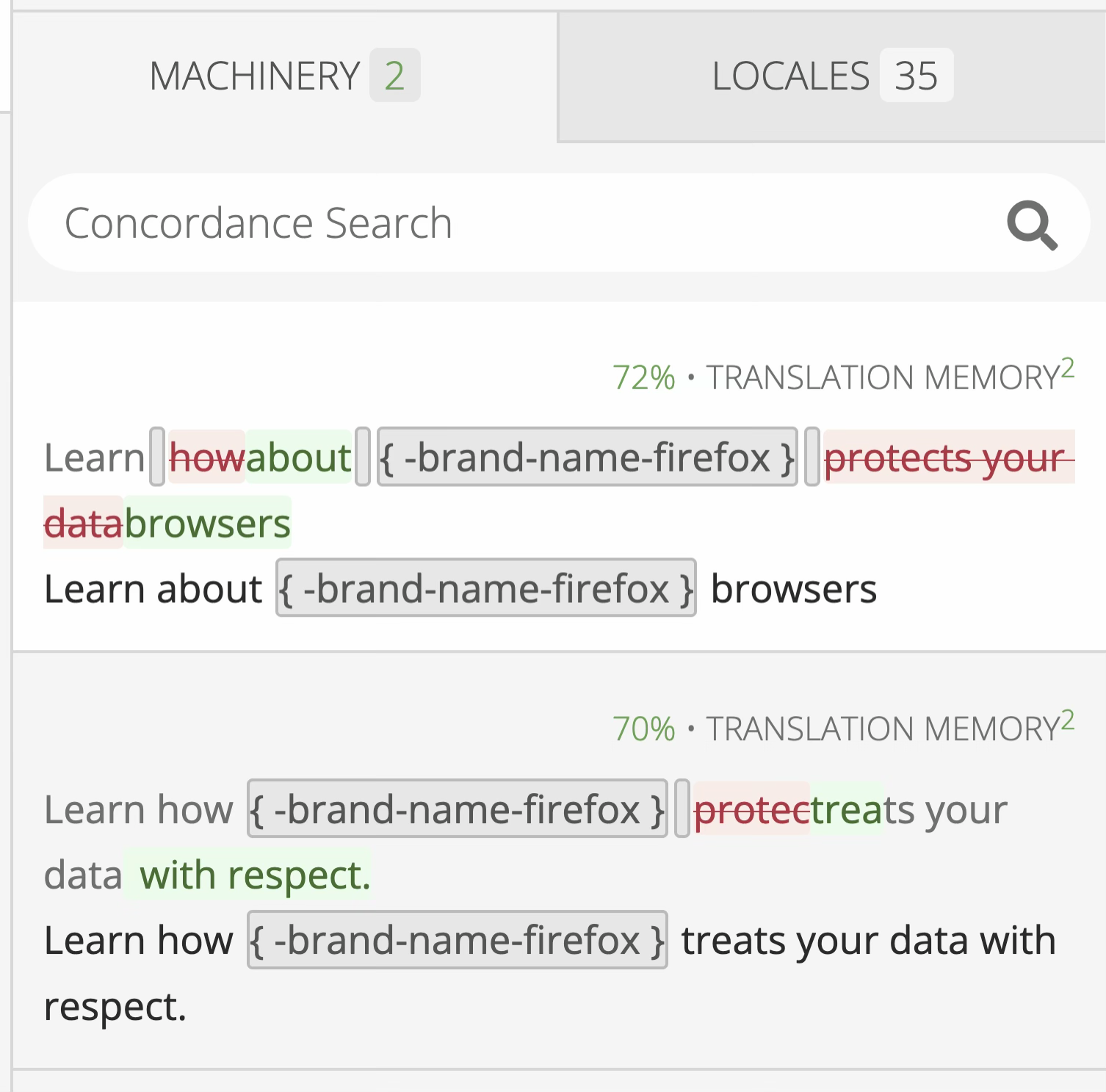
Machinery has two translation memory matches, and neither is exact.
Type `Learn how`, and autocomplete offers the whole placeholder `{ -brand-name-firefox }` in gray. It comes from the 70% match, because that’s the one that agrees with what you’ve written, even though it scores lower.
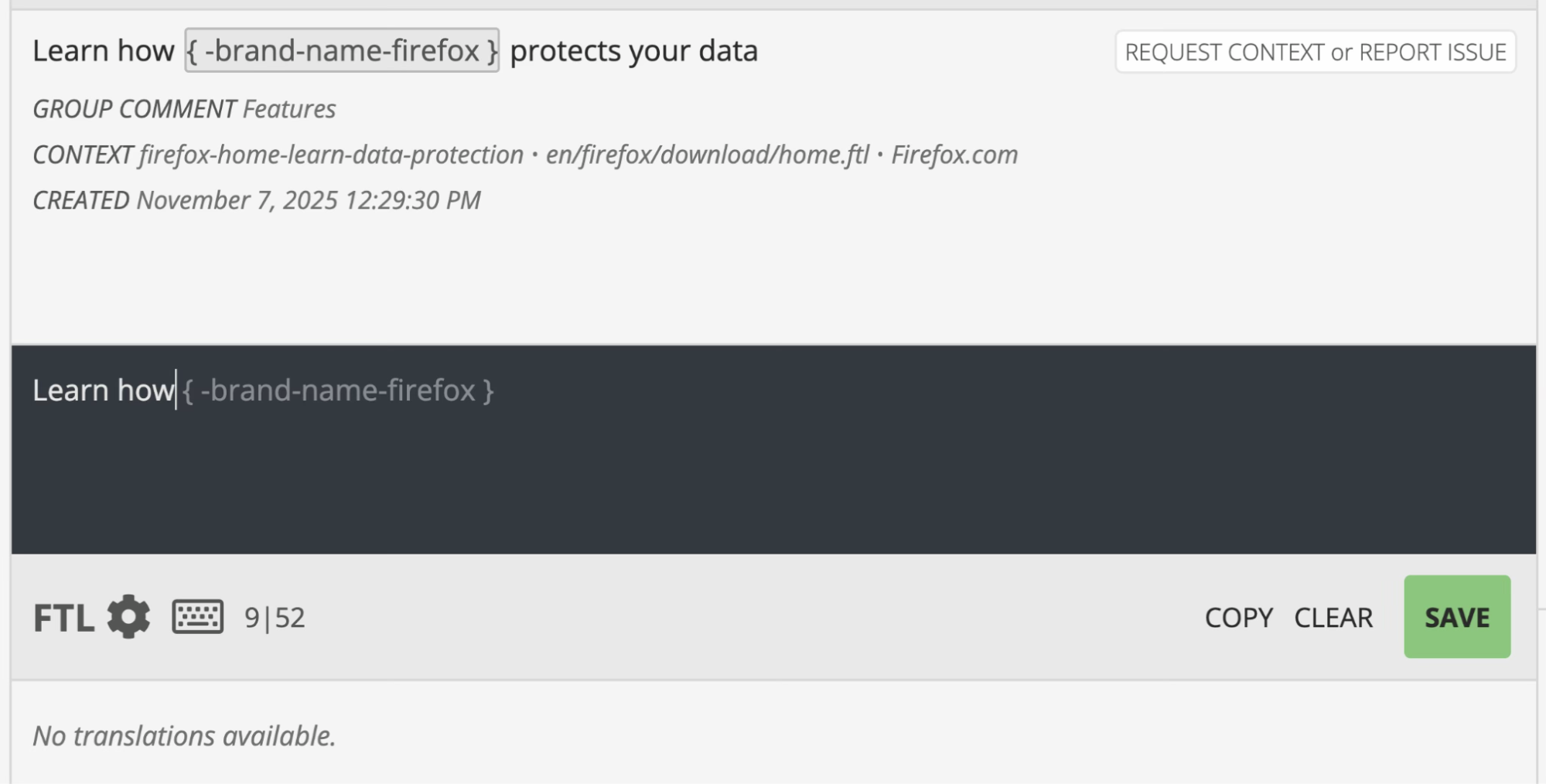
Autocomplete offers the placeholder from the 70% match.
Start typing the placeholder yourself, and autocomplete steps aside so the editor’s own placeholder completion can take over.
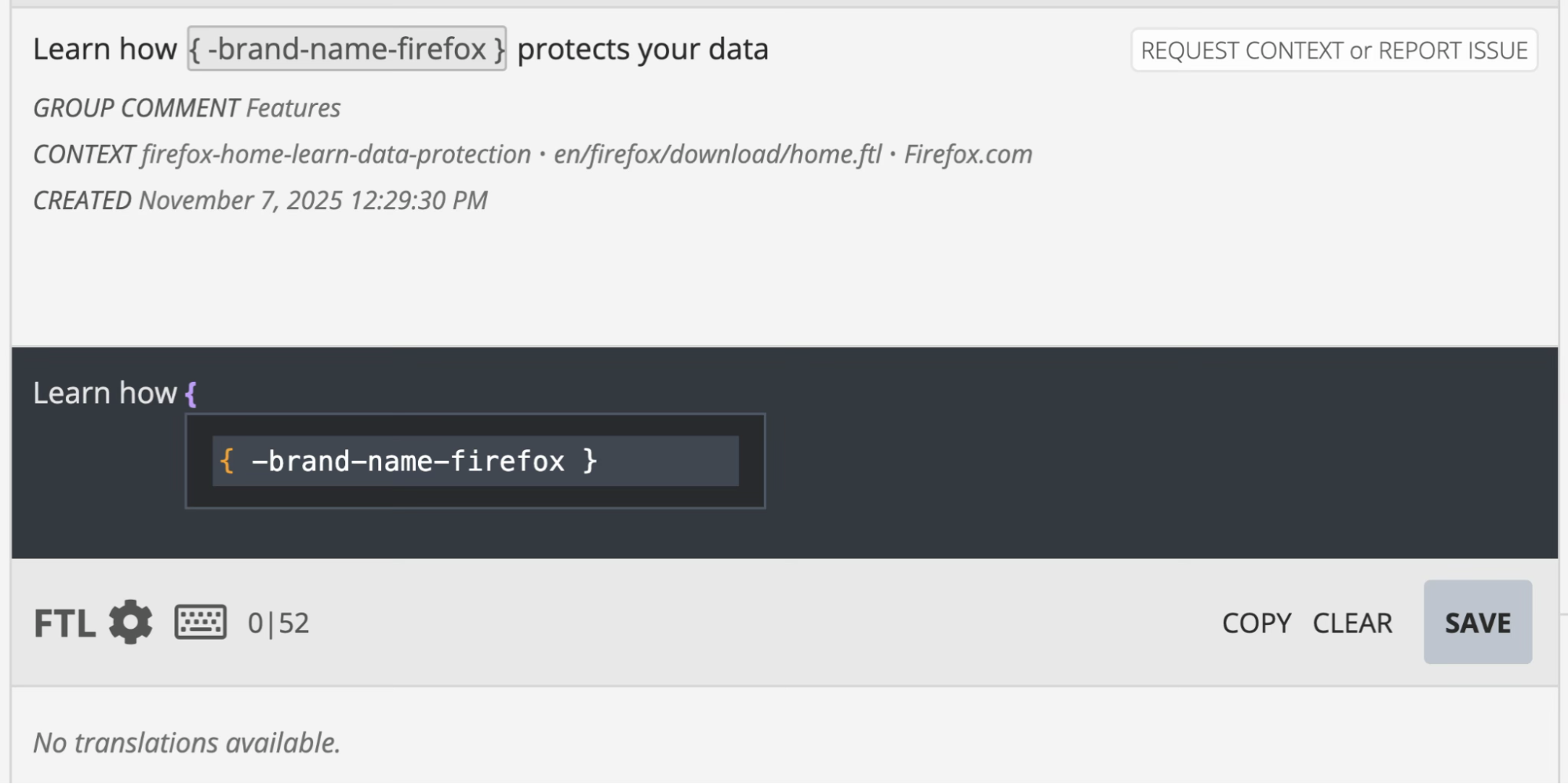
The editor’s placeholder dropdown takes over.
Type `b` after the placeholder, and autocomplete switches to the 72% match and offers `rowsers`.
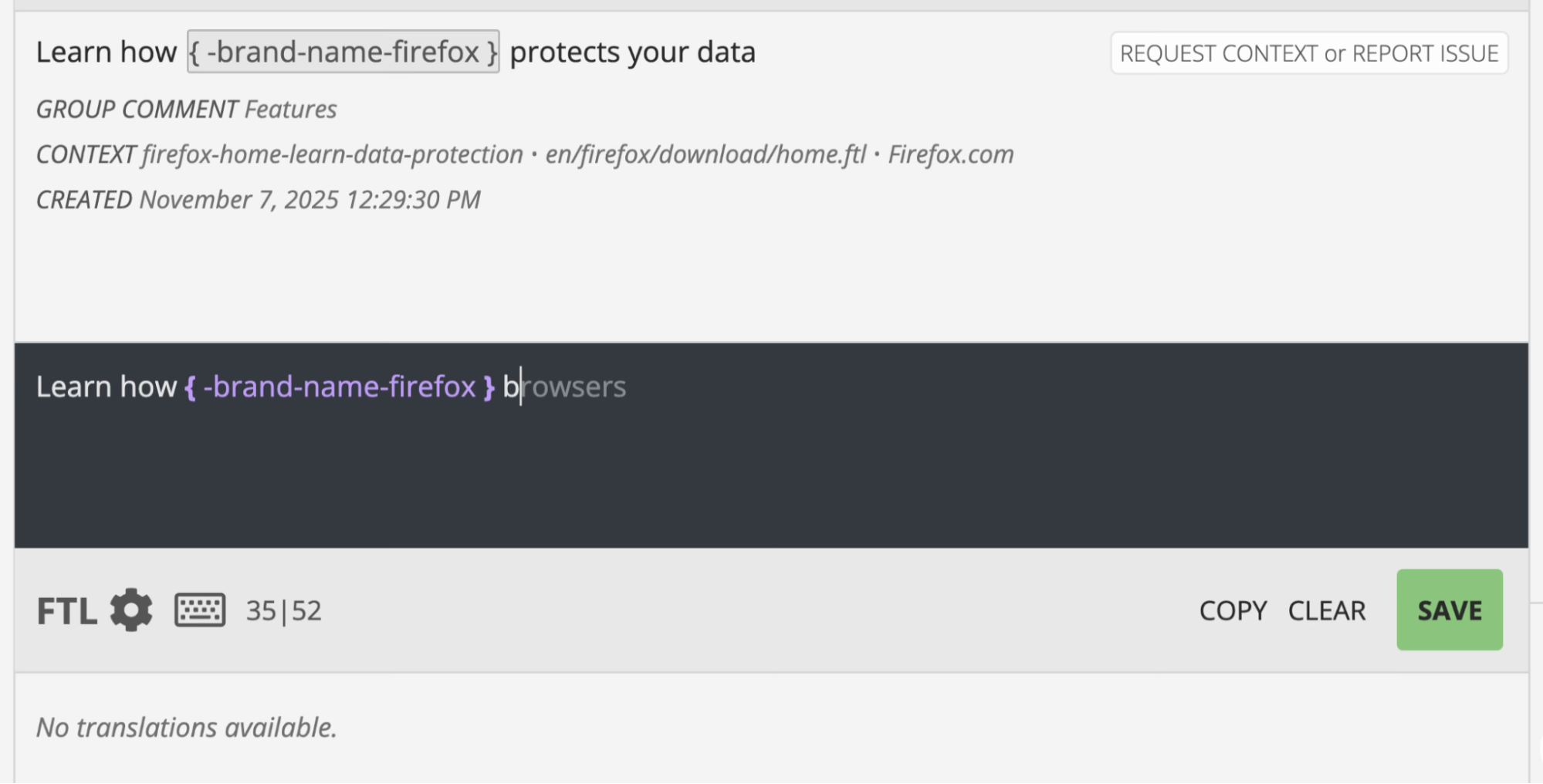
Autocomplete switches to the 72% match.
Change your mind and type `protects y` instead. Autocomplete goes back to the 70% match and offers `our`, even though neither match has “protects”. It only needs the last few characters, like `ects y`, to line up with a suggestion.
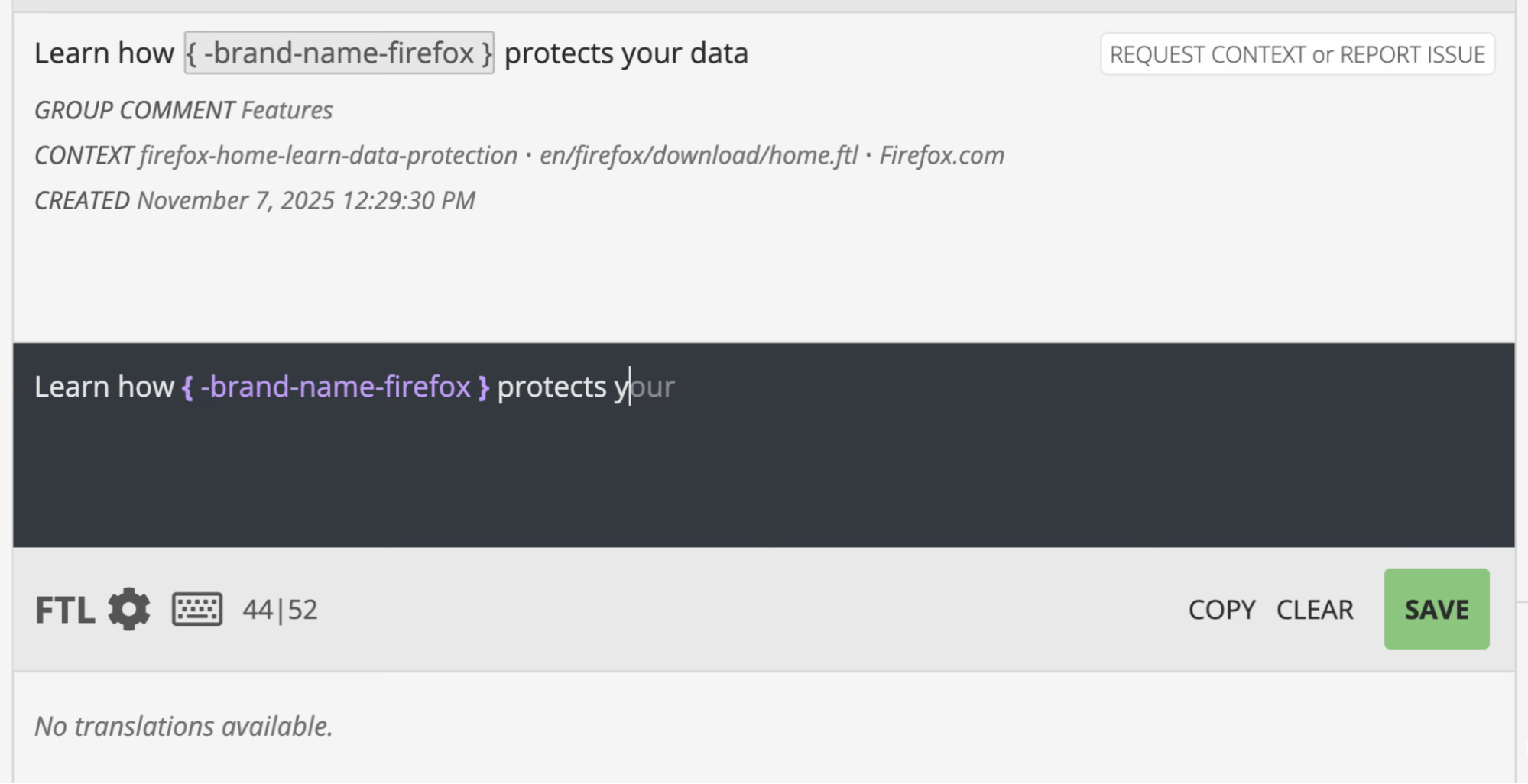
Autocomplete follows you back to the 70% match.
See Autocomplete in Action
Start typing your translation. When autocomplete finds a matching Machinery suggestion, the rest of the word, or the next word, appears in gray after your cursor. Press `Tab` to take it, `Esc` to hide it, or just keep typing.
The video walks through autocomplete on real strings, including what happens when you take a translation in a different direction from the suggestion.
Here’s the short version, with links to each part of the video:
- `Tab` takes one word at a time, along with its punctuation. Placeholders and tags like `{ $count }` are accepted whole. 0:27
- It makes way for the editor’s own dropdown. When you’re typing a placeholder or tag and the editor’s dropdown has options, autocomplete steps aside so you can pick from the dropdown instead. 0:49
- Type something different, and the suggestion follows. It switches to the suggestion that matches your words, or disappears if none does. 1:22
- `Esc` hides the suggestion until you type again, and you can undo an accepted word like any other edit. 1:27
- It stays out of your way. It only appears at the end of your text, and not right after you delete something, during a Concordance search, or in Advanced FTL mode. 1:47
- It works in languages without spaces, like Japanese, Chinese, and Thai. `Tab` still takes one word at a time. 2:00
- It’s on by default. To turn it off, click the gear icon in the lower-left corner of the editor and uncheck Autocomplete, or use the Editor section of the Settings page. 2:09
For more details, see the documentation.
Help Us Break It
Autocomplete is brand new, and the best way to make it good is for you to use it in your real work and tell us honestly how it feels. Does it save you time, or get in your way? Does the gray text show up when you’d expect it, and stay away when you don’t want it?
We’d also love for you to try to break it. Here are some places worth poking at:
- your own language, especially if it has no spaces between words, uses a right-to-left script, or builds long compound words;
- typing with an input method (IME);
- strings with placeholders, HTML tags, or several plural forms;
- long strings and multi-line strings;
- typing fast, using keyboard shortcuts, or switching to another string halfway through a word.
If something looks wrong, tell us on Matrix or open a GitHub issue. It helps a lot to include your locale, a link to the string, what you typed, and what you expected to see. Every report helps us make Machinery work for you, and not the other way around.
Finally, if you’d like to look at the technical side, check out #4627 and its follow-ups, or read the technical walkthrough.
No comments yet
Post a comment